
What You'll Learn
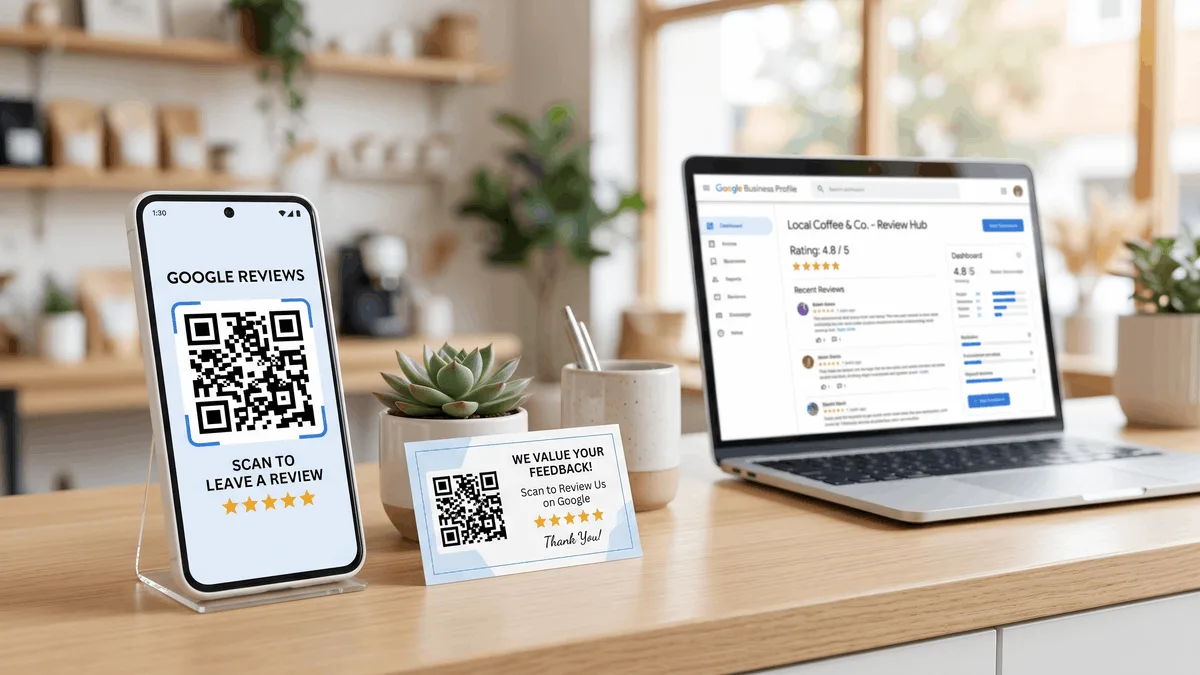
A happy customer almost always means to leave you a review. They just don't, because by the time they're back in the car, or back at their desk, the feeling's already faded and the four steps it takes to find your business on Google feel like too much effort for something that takes thirty seconds. A QR code for Google reviews closes that gap. The customer pulls out a phone they already have in their hand, points the camera at a code on your counter or your invoice, and lands directly on your review page. No typing your business name. No scrolling past three other businesses with a similar name first.
This guide walks through creating that QR code for free, in two different ways, testing it before you commit to printing anything, and figuring out where to actually put it so people use it instead of walking past it. None of this requires design software or a marketing budget. It takes about fifteen minutes to set up and costs nothing.
You don't need to be technical to get this right, and you don't need a designer either. The two free tools this guide uses are the same ones a dentist's office manager or a one-truck landscaping crew already use for everything else: a web browser and a phone. By the end, you'll have a working code, know exactly where to put it, and know the handful of mistakes that quietly make a perfectly good code useless.
Why This Matters for Your Business
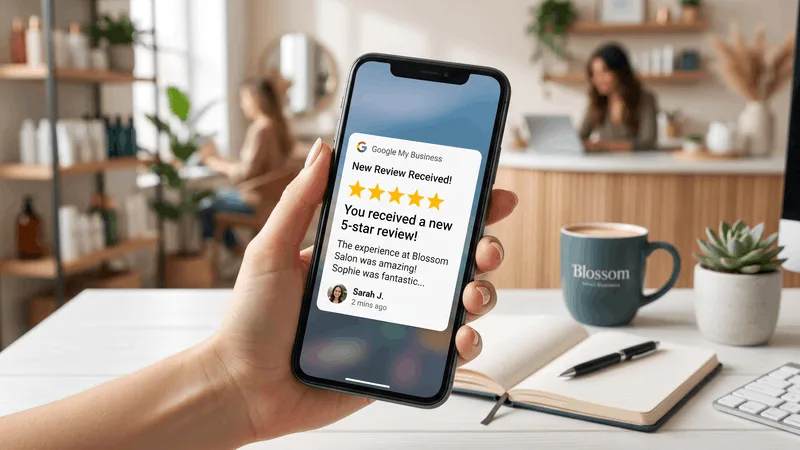
Asking a customer to leave a review usually means asking them to do something later: open an email tonight, remember a link tomorrow, find your business name in a search bar sometime this week. Every one of those steps is a place the request can quietly die. A QR code collapses all of it into one motion they can do standing right in front of you, while the experience is still fresh and they're still feeling good about it.
The math works out faster than most owners expect. Say you close five jobs a week and the QR code converts just one of those into a review that wouldn't have happened otherwise. That's roughly 250 extra reviews over the course of a year, from a sticker that cost you nothing but a few minutes to set up. A salon or a café with daily walk-in traffic sees an even faster climb, because the code is sitting in front of dozens of people a day instead of five.
It also solves a problem that text and email requests don't: the in-person moment. A plumber who's already texting customers a review link after every job (or using a tool like Clienzo to fire that link automatically the moment a job is marked complete) still has a gap for the customer standing at the counter right now, phone in hand, who'd rather scan something than wait for a text that might land an hour later. A QR code fills that exact gap. It's not a replacement for an automated request; it's the version of the ask that works when the customer is standing in front of you instead of reading a text after they've left.
Step 1: Grab Your Free Google Review Link
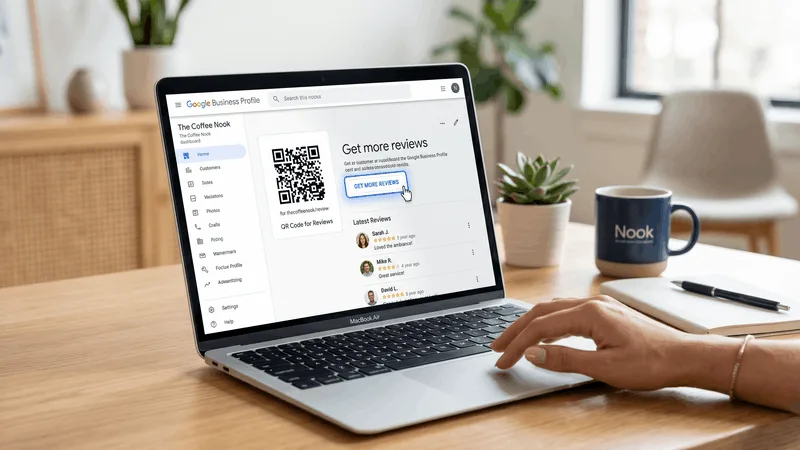
Before you can make a QR code, you need the actual link it's going to point to: not your homepage, not your general Google Maps listing, but the specific link that drops a customer straight into the review-writing screen. Search your business name on Google, find your Business Profile in the panel on the right or top of the results, and look for a button labeled Get more reviews or Ask for reviews. Click it and Google generates a short, shareable link.
If you manage your profile through the Google Business Profile app instead of a desktop search, the same link lives under your business name, usually on the home screen or under a Customers or Reviews tab. Either way, copy that link somewhere you'll find it again: a notes app, an email to yourself, wherever you keep the handful of links you actually use for the business.
Double-check it before moving on. Paste the link into a private or incognito browser tab and confirm it opens directly to a star rating and a text box, not your general listing with a "write a review" button buried three taps down. If it opens the full Maps listing instead of the review screen, you copied the wrong link: go back to Get more reviews and copy from there specifically.
Step 2: Turn That Link Into a QR Code, for Free
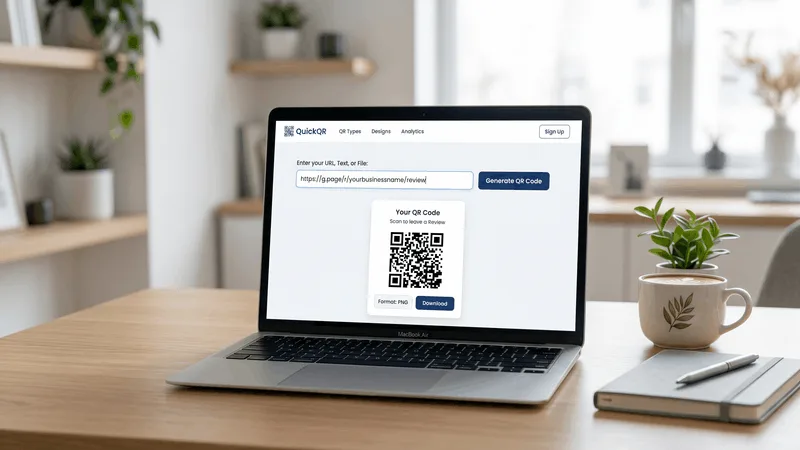
You have two free options here, and which one you pick depends on whether you want something fast or something that matches your branding.
Google's own Get more reviews page usually includes a small QR code right alongside the shareable link, ready to download as an image with no extra account or signup. That's the fastest path: copy the link, grab the code on the same screen, done. It's plain black and white, which is perfectly fine for a sticker on a register or a line on an invoice where nobody's expecting a polished design anyway.
If you want a code that matches your brand colors, includes your logo in the center, or tells you how many times it's actually been scanned, a free third-party generator does that in the same amount of time. Paste your review link in, customize the look, and download the image.
| Option | Customization | Best For |
|---|---|---|
| Google's built-in code | None: plain black and white | Getting something usable in under a minute |
| QRCode Monkey | Colors, logo, frame text | Printed signage that should match your branding |
| Canva | Full design control inside a flyer or table tent | Building the code directly into a piece you're already designing |
| Bitly | Branded short link plus scan counts | Owners who want to know how many people actually scan it |
Whichever you pick, download the highest resolution version offered. A code that looks crisp on a screen can turn into a blurry gray smudge once it's shrunk down and printed on a receipt, and a smudged code is one nobody's phone can read.
Step 3: Test the QR Code Before You Print Anything
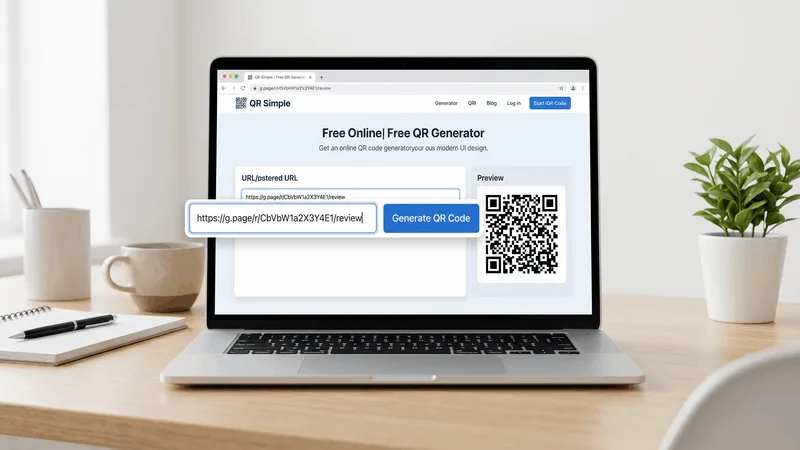
This step takes thirty seconds and saves you from printing five hundred table tents with a broken code on them. Print a single test copy at the actual size you plan to use it, whether that's a small receipt-sized square or a full sheet of paper for a window decal. A code that scans fine on your laptop screen doesn't always survive being shrunk down to an inch and a half.
Scan it with your own phone's default camera, not a QR scanning app, since that's what most of your customers will use too. Try it from a normal arm's-length distance, then try it again from a couple feet away the way someone might scan it from across a counter. Check that it opens the actual review screen and not your homepage or your Maps listing.
If you're printing on a darker background or a textured material like a wood table tent, test on that exact surface. Low contrast between the code and its background is one of the most common reasons a code that worked on a white printer page fails once it's actually out on the floor.
Step 4: Print and Place It Where Customers Will Actually See It
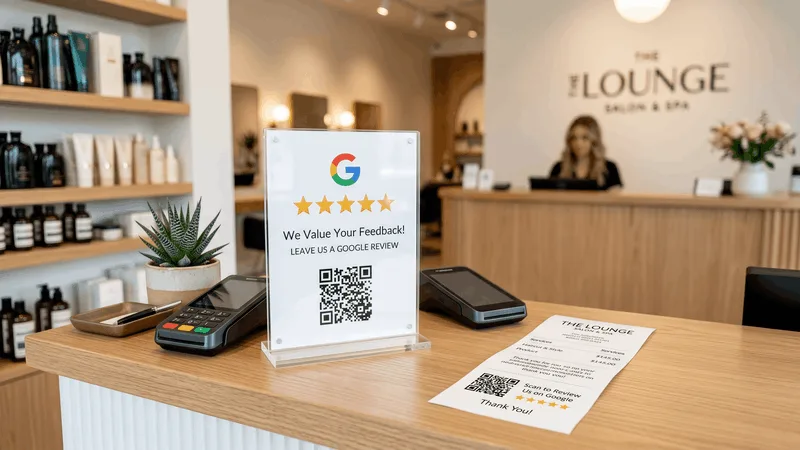
A QR code only works if it's somewhere a customer's eyes naturally land at the exact moment they're feeling good about the visit. The best placement depends on what kind of business you run.
- Receipts and invoices. A code printed at the bottom of every receipt or emailed invoice reaches every single customer automatically, with zero extra effort on your part once it's set up.
- Table tents and counter signs. Restaurants and cafés get the most mileage here, since the customer is sitting with nothing to do while they wait for the check.
- Business cards and thank-you cards. A contractor or stylist handing over a card at the end of a job can flip it over to a small code on the back instead of asking out loud.
- Vehicle decals and yard signs. Plumbers, electricians, and landscapers already have a van or a job-site sign customers are looking at anyway: a small code in the corner turns dead space into a review request.
- Equipment stickers. An HVAC tech or appliance repair company can leave a small sticker on the unit itself, so the code is still there months later when the customer thinks "that was a good repair."
Pick one or two placements to start instead of papering every surface at once. A receipt code plus a counter sign covers most retail and restaurant traffic; an invoice code plus a van decal covers most home service calls. Add more locations later once you see which one customers are actually using.
Think about the moment your specific customer is in when they'd see each placement, not just whether the code is technically visible. A code buried in the fine print at the bottom of a six-page invoice gets skipped the same way a paragraph of terms and conditions does. A code on its own line, right above your business name and phone number where customers already glance to confirm they're looking at the right document, gets noticed. Position matters as much as placement.
Step 5: Add a Short Line That Tells Customers Exactly What to Do
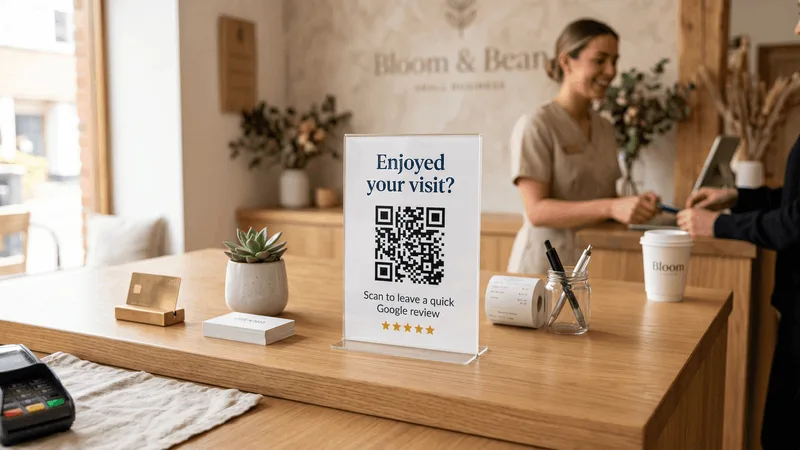
A bare QR code with no explanation gets ignored. Most people don't scan a code on principle; they scan it because a line of text told them what's on the other side and that it's worth thirty seconds. Write a short line above or below the code that says what scanning it does, not just that it exists.
"Enjoyed your visit? Scan to leave us a quick Google review" works better than "Scan here" or no text at all. For a home service business, "Got a minute? Scan to tell us how we did" reads naturally on an invoice. Keep it under ten words: anything longer starts looking like fine print, and fine print gets skipped.
If you have room, add a second small line setting expectations: "Takes less than a minute." Customers who think a review means writing three paragraphs are far less likely to start. Telling them it's quick removes the hesitation before it has a chance to form.
Resist the urge to make the prompt clever instead of clear. "Help us grow!" or "Support a local business!" asks the customer to care about your business's goals before they've decided to care about leaving a review at all. "Scan to leave us a quick Google review" tells them the action and the outcome in five words, which is exactly the amount of thinking a customer wants to do while they're waiting for a check or walking back to their car.
Common Mistakes to Avoid

A few habits quietly waste all the setup work above:
- Linking to your homepage instead of the review screen. If a customer has to search around after scanning, most won't bother. Always link to the direct Get more reviews link from Step 1.
- Printing it too small to scan comfortably. Anything smaller than about an inch and a half on a receipt becomes a guessing game for a phone camera, especially in dim lighting.
- Offering a discount or freebie in exchange for a review. Google's policies prohibit incentivized reviews, and a flagged pattern of "review for 10% off" can get reviews removed or your profile penalized.
- Setting it and forgetting it. A code on a sign that's faded, ripped, or partially covered by a newer flyer stops working long before anyone notices. Glance at your printed codes every few weeks.
- Using one code for every location. If you run more than one location, each needs its own code pointing to that specific Business Profile, or reviews start landing on the wrong listing.
- Never testing after a reprint. A new print run from a different printer or paper stock can come out lower resolution than your original test. Re-scan a copy from every new batch before putting it out.